How to Replace a Section in Your Song?

Rachel
10/8/2025

Want to change specific lyrics in your AI-generated song without recreating the entire track? Our Replace Section feature allows you to select any part of your song, modify the lyrics, and regenerate just that section while keeping the rest intact. In this guide, we'll walk you through the simple process of replacing sections in your songs step by step.
Step-by-Step Guide to Replace a Section
Step 1: Select Your Song and Open Replace Section
First, locate the song you want to edit in your music list. Click the menu button (three dots) next to the song, then select "Replace Section" to begin the editing process.
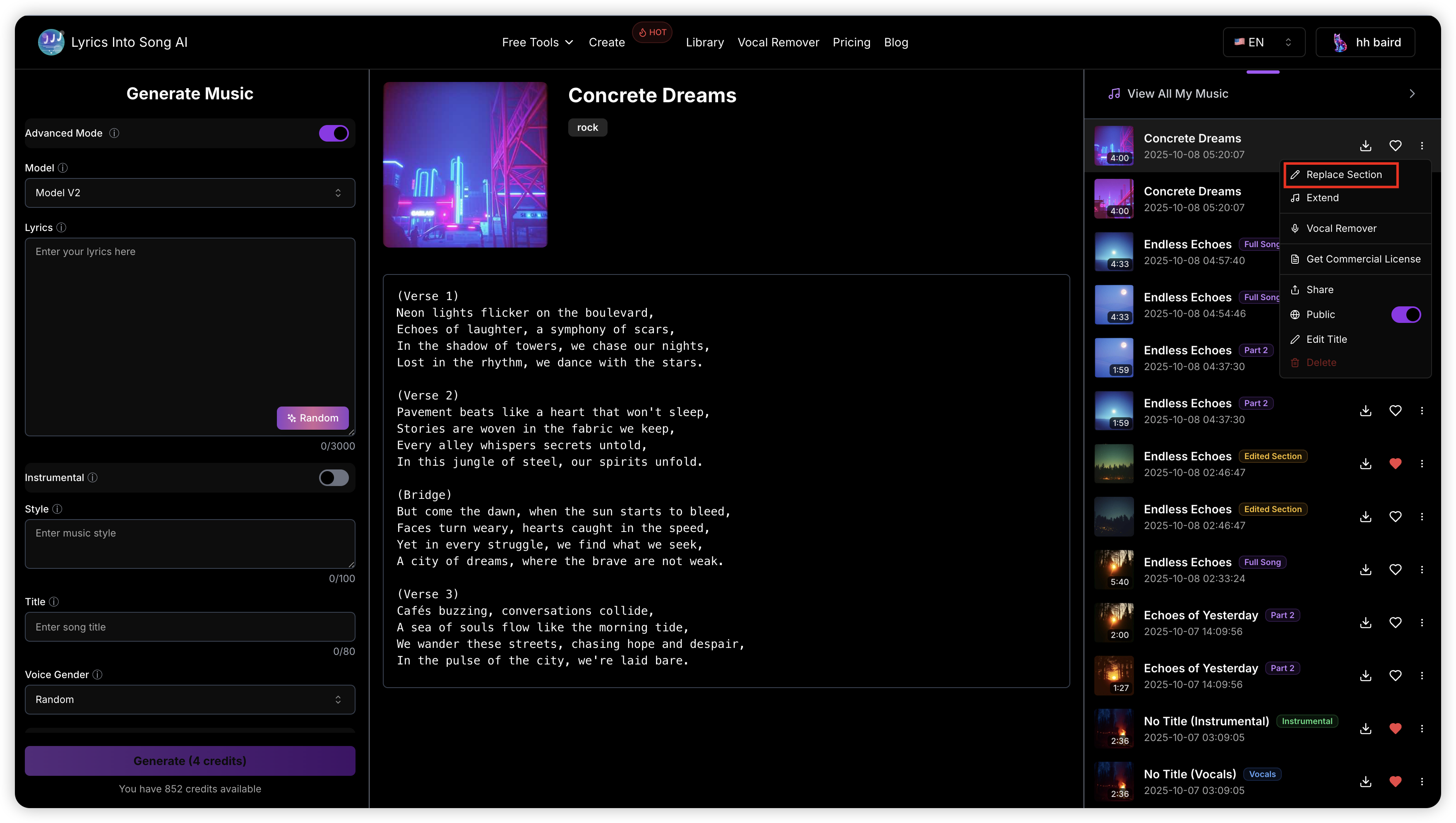
Note: The Replace Section feature is only available for paid users and is not included in the Monthly Basic plan.
Step 2: Select the Lyrics Area to Replace
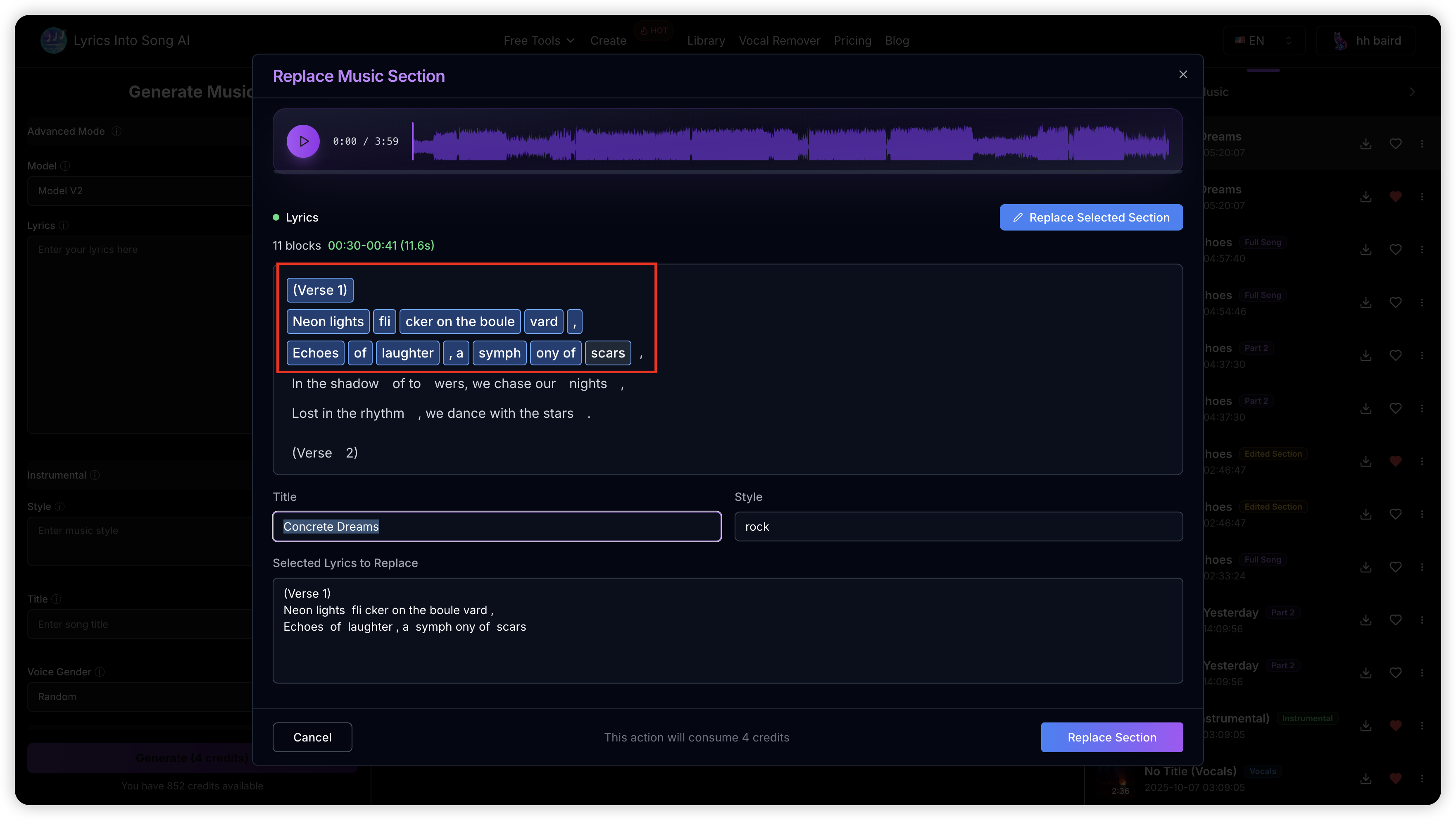
Once the editor opens, you'll see your song's lyrics synchronized with timestamps. Select the section you want to replace by clicking and dragging across the lyrics.
Selection Requirements:
- The selected area must be at least 6 seconds in duration
- You can select words, phrases, or entire verses
Selection Tips:
- Click and drag: Select a continuous range of lyrics
- Shift + Click: Extend your selection
- Ctrl/Cmd + Click: Toggle individual words
- Alt + Click: Select an entire line
Step 3: Edit Your Lyrics
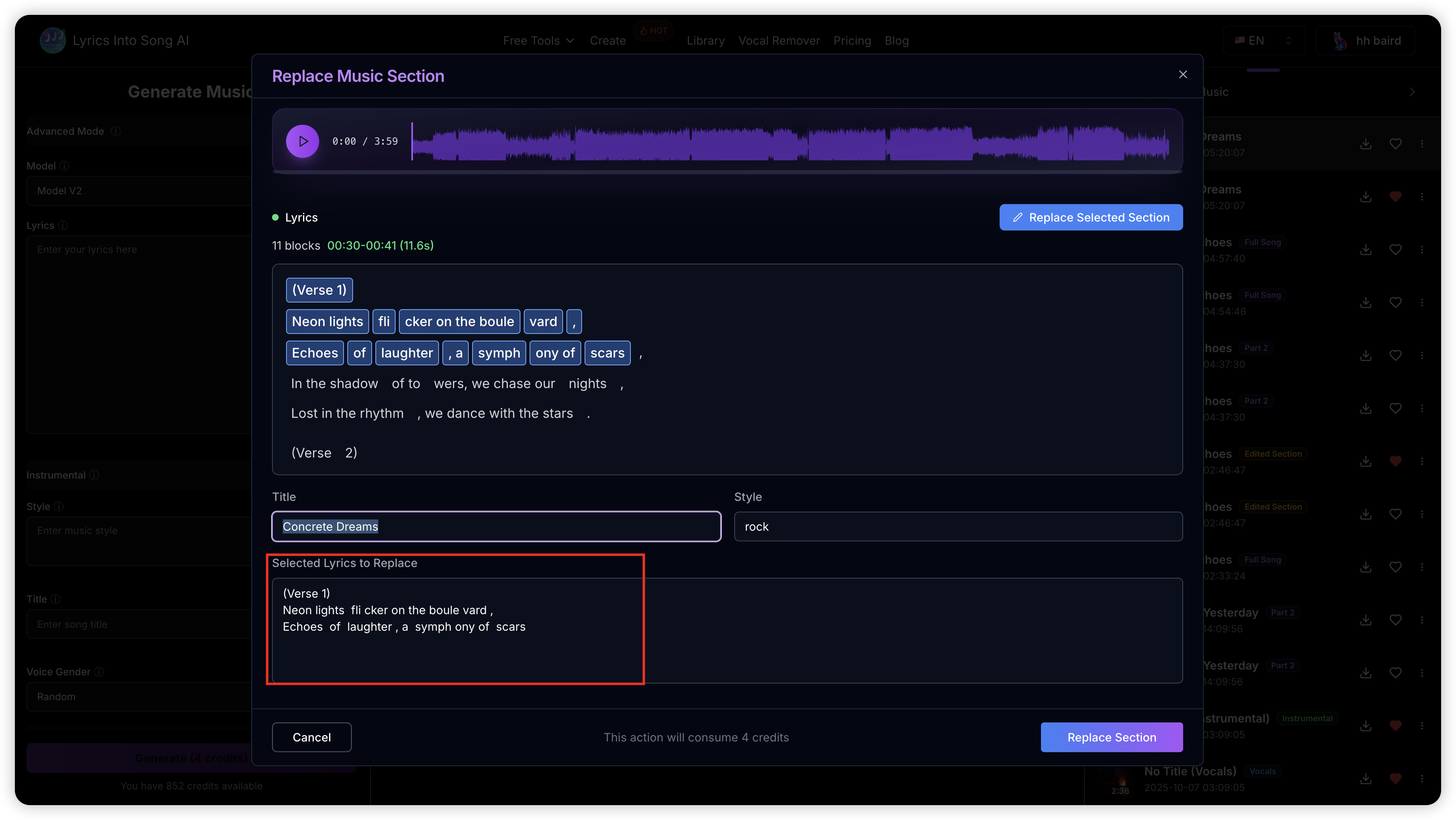
After selecting the section, click the "Edit Selected Lyrics" button. A dialog will appear where you can modify the selected lyrics.
Enter your new lyrics in the text field. Make sure the new lyrics fit naturally with the rest of the song for the best results.
Step 4: Generate the Replacement
After editing your lyrics, you can optionally modify the title and style settings. When you're ready, click the "Replace Section" button to start the generation process.
The AI will regenerate the selected section with your new lyrics, then automatically integrate it with the unchanged parts of the original song. Processing may take a few minutes.
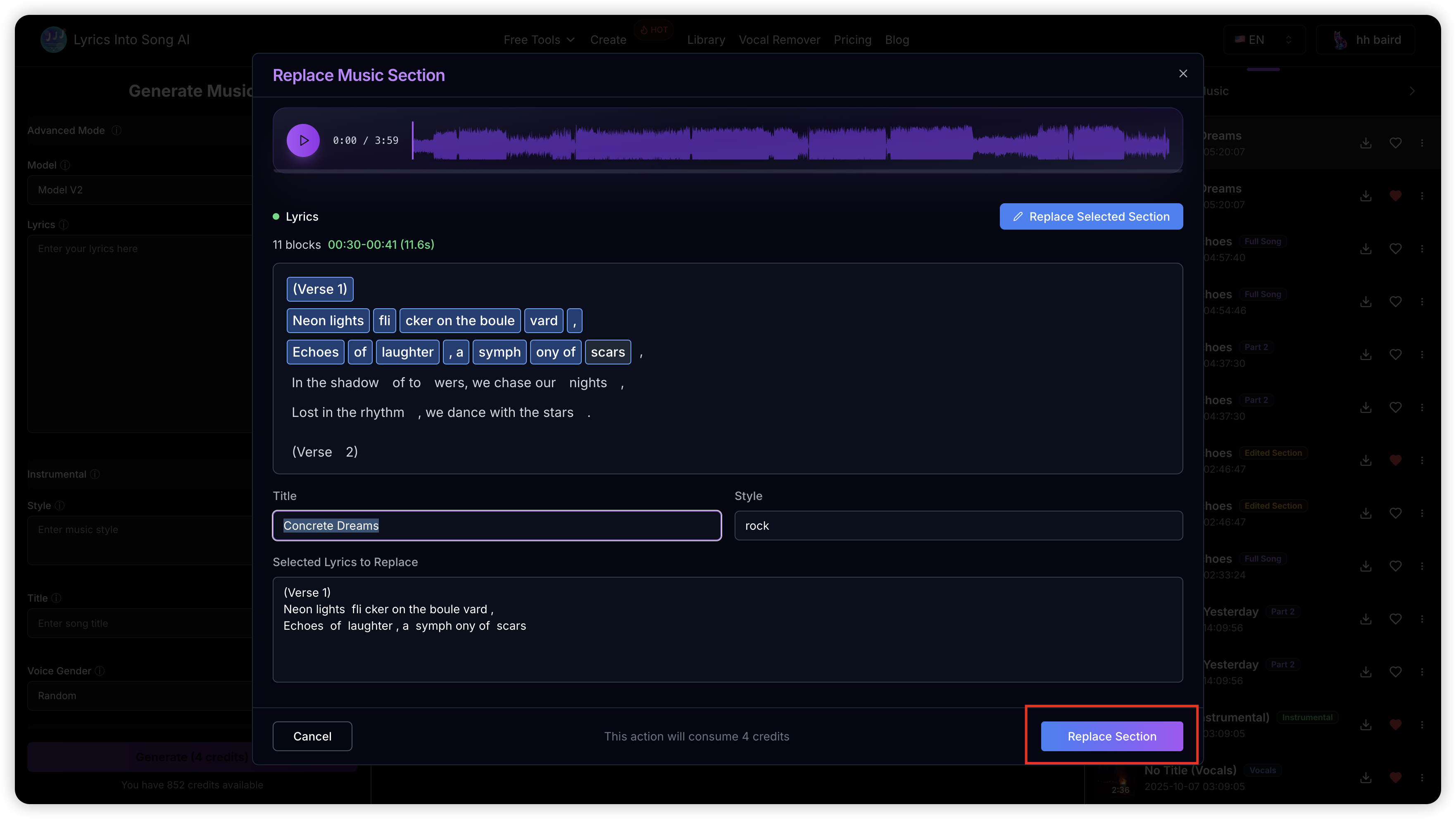
Note: Each generation costs 4 credits and creates 2 versions for you to choose from.
Step 5: Receive Your Complete Edited Songs
Once processing is complete, the system automatically integrates each regenerated version with the original song. There is no additional merge step and no "Get Whole Song" button to click.
Two complete edited songs appear directly in the editor and your music library, so you can preview both versions and choose the one you prefer.
Important: Keep the editor open while processing is in progress. Your complete versions will appear automatically when they are ready.
Tips for Best Results
- Select Meaningful Sections: Choose sections that align with musical phrases, verses, or choruses for more natural results
- Maintain Lyrical Flow: Ensure your new lyrics flow naturally with the surrounding content in terms of syllable count and rhythm
- Consider the Context: The AI uses approximately 17 seconds of context before and after your selection to maintain musical continuity
- Use Appropriate Length: While the minimum is 6 seconds, selecting longer sections (10-15 seconds) often produces better results
- Review Both Versions: You get 2 versions with each generation, so listen to both and choose the one that works best
Common Questions
Q: What's the minimum duration I can select?
A: The selected section must be at least 6 seconds long to ensure the AI has enough context to generate a coherent replacement.
Q: How many credits does it cost?
A: Each Replace Section generation costs 4 credits. If the generation fails, your credits will be automatically refunded.
Q: Can I replace multiple sections at once?
A: Currently, you can only replace one section at a time. However, you can perform multiple replace operations on the same song sequentially.
Q: What happens to the original song?
A: The original song remains unchanged. Two complete edited copies are created automatically, each with the regenerated section already integrated.
Q: Why do I need to select at least 6 seconds?
A: The AI needs sufficient musical context to understand the melody, rhythm, and style to generate a replacement that fits naturally with the rest of the song.
Q: What if I don't see the lyrics timestamps?
A: The system automatically loads lyrics timestamps when you open the Replace Section dialog. If your song doesn't have this data, it will be generated automatically (this may take a few moments).
Ready to perfect your songs by replacing specific sections? Head over to your music library and start editing today!